Ransom.Win64.RUSTYLOCKER.THLAHBE

Ransom:Win64/Lockbox.CI!MTB (MICROSOFT)
Windows




Threat Type: Ransomware
Destructiveness: No
Encrypted:
In the wild: Yes
OVERVIEW
This Ransomware arrives on a system as a file dropped by other malware or as a file downloaded unknowingly by users when visiting malicious sites.
It drops files as ransom note. It avoids encrypting files with the following file extensions.
TECHNICAL DETAILS
Arrival Details
This Ransomware arrives on a system as a file dropped by other malware or as a file downloaded unknowingly by users when visiting malicious sites.
Installation
This Ransomware adds the following folders:
- %Application Data%\lockbox\
(Note: %Application Data% is the current user's Application Data folder, which is usually C:\Documents and Settings\{user name}\Application Data on Windows 2000(32-bit), XP, and Server 2003(32-bit), or C:\Users\{user name}\AppData\Roaming on Windows Vista, 7, 8, 8.1, 2008(64-bit), 2012(64-bit) and 10(64-bit).)
It drops the following files:
- %Application Data%\lockbox\lockbox_icon.ico
- {malware path}\ransom_note_exec.exe → displays the ransomnote
(Note: %Application Data% is the current user's Application Data folder, which is usually C:\Documents and Settings\{user name}\Application Data on Windows 2000(32-bit), XP, and Server 2003(32-bit), or C:\Users\{user name}\AppData\Roaming on Windows Vista, 7, 8, 8.1, 2008(64-bit), 2012(64-bit) and 10(64-bit).)
It adds the following processes:
- schtasks /Create /SC MINUTE /MO 1 /TN RustRansomNoteTask /TR "{malware path}\ransom_note_exec.exe" /F
- vssadmin delete shadows /all /quiet
Other System Modifications
This Ransomware adds the following registry entries:
HKEY_CLASSES_ROOT\.lockbox
(Default) = lockboxfile
HKEY_CLASSES_ROOT\lockboxfile
(Default) = Lockbox File
HKEY_CLASSES_ROOT\lockboxfile\DefaultIcon
(Default) = %User Profile%\lockbox\lockbox_icon.ico
HKEY_CLASSES_ROOT\lockboxfile\shell\
open\command
(Default) = notepad.exe "%1"
Process Termination
This Ransomware terminates the following services if found on the affected system:
- vss
- sql
- svc$
- memtas
- mepocs
- msexchange
- sophos
- veeam
- backup
- GxVss
- GxBlr
- GxFWD
- GxCVD
- GxCIMgr
It terminates the following processes if found running in the affected system's memory:
- sql
- oracle
- ocssd
- dbsnmp
- synctime
- agntsvc
- isqlplussvc
- xfssvccon
- mydesktopservice
- ocautoupds
- encsvc
- firefox
- tbirdconfig
- mydesktopqos
- ocomm
- dbeng50
- sqbcoreservice
- excel
- infopath
- msaccess
- mspub
- onenote
- outlook
- powerpnt
- steam
- thebat
- thunderbird
- visio
- winword
- wordpad
- notepad
Information Theft
This Ransomware gathers the following data:
- Computer name
- BIOS info
- Running processes
- Debugger status
- Admin privileges
Other Details
This Ransomware does the following:
- It checks the following registries:
- HKEY_LOCAL_MACHINE\HARDWARE\DESCRIPTION\System\BIOS\SystemManufacturer
- HKEY_LOCAL_MACHINE\HARDWARE\DESCRIPTION\System\BIOS\SystemProductName
- It terminates itself if the values of registries entries above contain:
- VBOX
- QEMU
- XEN
- It terminates itself if the computer name contains the following:
- sandbox
- cuckoo
- analysis
- malware
- It terminates itself if any process containing the following exists:
- wireshark
- procmon
- x64dbg
- x32dbg
- ollydbg
- ida64
- ghidra
- fiddler
- It encrypts files depending on their filesize:
- < 200MB: Full file encryption
- >= 200MB: 200MB Block at a time encryption (block-based)
- It adds the following scheduled task:
- Name: RustRansomNoteTask
- Trigger: Runs every 1 minute
- Action: Executes {malware path}\ransom_note_exec.exe
It accepts the following parameters:
- --pass [password] → Required encryption password or key
- --folder [path] → Encrypt all files in a specific folder
- --file [path] → Encrypt a single specific file
Ransomware Routine
This Ransomware avoids encrypting files with the following strings in their file name:
- autorun.inf
- boot.ini
- bootfont.bin
- bootsect.bak
- desktop.ini
- iconcache.db
- ntldr
- ntuser.dat
- ntuser.dat.log
- ntuser.ini
- thumbs.db
It avoids encrypting files found in the following folders:
- $recycle.bin
- config.msi
- $windows.~bt
- $windows.~ws
- windows
- appdata
- application data
- boot
- mozilla
- program files
- program files (x86)
- programdata
- system volume information
- tor browser
- windows.old
- intel
- msocache
- perflogs
- x64dbg
- public
- all users
- default
It appends the following extension to the file name of the encrypted files:
- .lockbox
It drops the following file(s) as ransom note:
- {encrypted path}\README_FOR_DECRYPT.txt
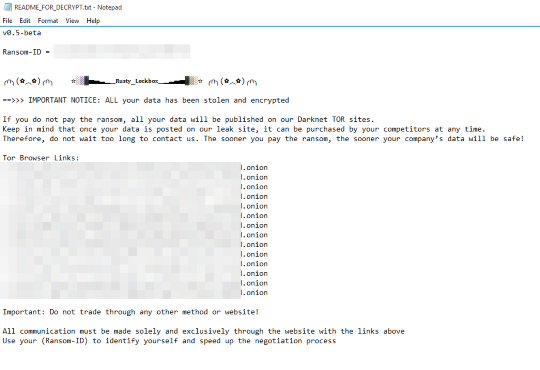
It avoids encrypting files with the following file extensions:
- 386
- adv
- ani
- bat
- bin
- cab
- cmd
- com
- cpl
- cur
- dll
- drv
- exe
- hlp
- icl
- icns
- ico
- ics
- idx
- ldf
- lnk
- mod
- mpa
- msc
- msp
- nls
- ocx
- prf
- ps1
- rom
- rtp
- scr
- shs
- spl
- sys
- wpx
- lock
- key
- hta
- msi
- pdb
- deskthemepack
- diagcab
- diagcfg
- diagpkg
- msstyles
- msu
- nomedia
- theme
- themepack
SOLUTION
Step 1
Trend Micro Predictive Machine Learning detects and blocks malware at the first sign of its existence, before it executes on your system. When enabled, your Trend Micro product detects this malware under the following machine learning name:
-
Troj.Win32.TRX.XXPE50FFF100
Step 2
Before doing any scans, Windows 7, Windows 8, Windows 8.1, and Windows 10 users must disable System Restore to allow full scanning of their computers.
Step 3
Note that not all files, folders, and registry keys and entries are installed on your computer during this malware's/spyware's/grayware's execution. This may be due to incomplete installation or other operating system conditions. If you do not find the same files/folders/registry information, please proceed to the next step.
Step 4
Restart in Safe Mode
Step 5
Deleting Scheduled Tasks while in Safe Mode
- Still in safe mode, the following {Task Name}-{Task to be run} listed should be used in the steps identified below: Task Name: RustRansomNoteTaskTask to be run: {malware path}\ransom_note_exec.exe
- For Windows 7 and Server 2008 (R2) users, click Start>Computer.
- For Windows 8, 8.1, 10, and Server 2012 users, right-click on the lower left corner of the screen, then click File Explorer.
- In the Search Computer/This PC input box, type:
- %System%\Tasks\{Task Name}
- Once located, select the file then press SHIFT+DELETE to delete it.
- Open Registry Editor. To do this:
- For Windows 7 and Server 2008 (R2) users, click the Start button, type regedit in the Search input field, and press Enter.
- For Windows 8, 8.1, 10, and Server 2012 (R2) users, right-click on the lower left corner of the screen, click Run, type regedit in the text box
- In the left panel of the Registry Editor window, double-click the following:
- HKEY_LOCAL_MACHINE>SOFTWARE>Microsoft>Windows NT>CurrentVersion>Schedule>TaskCache>Tree>{Task Name}
- Locate the created entry and take note of the registry value's data:
- ID={Task Data}
- After taking note of the data, delete the registry key:
- HKEY_LOCAL_MACHINE>SOFTWARE>Microsoft>Windows NT>CurrentVersion>Schedule>TaskCache>Tree>{Task Name}
- In the left panel of the Registry Editor window, double-click the following:
- HKEY_LOCAL_MACHINE>SOFTWARE>Microsoft>Windows NT>CurrentVersion>Schedule>TaskCache>Tasks
- Still in the left panel, locate and delete the registry key with the same name as the located Task Data in step #6:
- ={Task Data}
- Close Registry Editor.
Step 6
Delete this registry key
=Important: Editing the Windows Registry incorrectly can lead to irreversible system malfunction. Please do this only if you know how to or you can seek your system administrator’s help. You may also check out this Microsoft article first before modifying your computer's registry.
- HKEY_CLASSES_ROOT\.lockbox
- HKEY_CLASSES_ROOT\lockboxfile
Step 7
Search and delete these files
- {encrypted path}\README_FOR_DECRYPT.txt
- %Application Data%\lockbox\lockbox_icon.ico
- {malware path}\ransom_note_exec.exe
Step 8
Search and delete these folders
Step 9
Restart in normal mode and scan your computer with your Trend Micro product for files detected as Ransom.Win64.RUSTYLOCKER.THLAHBE. If the detected files have already been cleaned, deleted, or quarantined by your Trend Micro product, no further step is required. You may opt to simply delete the quarantined files. Please check this Knowledge Base page for more information.
Step 10
Restore encrypted files from backup.
Did this description help? Tell us how we did.