Ransom.MSIL.COBRALOCKER.C

Ransom:MSIL/Cobra.PA!MTB(MICROSOFT); TrojanRansom.MSIL(QUICKHEAL)
Windows




Threat Type: Ransomware
Destructiveness: No
Encrypted: No
In the wild: Yes
OVERVIEW
This Ransomware arrives on a system as a file dropped by other malware or as a file downloaded unknowingly by users when visiting malicious sites.
It encrypts files found in specific folders.
TECHNICAL DETAILS
Arrival Details
This Ransomware arrives on a system as a file dropped by other malware or as a file downloaded unknowingly by users when visiting malicious sites.
Installation
This Ransomware drops the following files:
- C:\Windows\System32LogonUI.exe
- C:\Windows\System32\LogonUI.exe
It adds the following processes:
- cmd.exe /k color 47 && takeown /f C:\Windows\System32\LogonUI.exe && icacls C:\Windows\System32\LogonUI.exe /grant %username%:F && copy C:\Windows\System32\LogonUI.exe %temp%\LogonUI.exe && del C:\Windows\System32\LogonUI.exe && takeown /f C:\Windows\System32\Taskmgr.exe && icacls C:\Windows\System32\Taskmgr.exe /grant %username%:F && del C:\Windows\System32\Taskmgr.exe && exit
Other System Modifications
This Ransomware deletes the following files:
- %User Profile%\Desktop\desktop.ini
- %User Profile%\Downloads\desktop.ini
- %User Profile%\Pictures\desktop.ini
(Note: %User Profile% is the current user's profile folder, which is usually C:\Documents and Settings\{user name} on Windows 2000(32-bit), XP, and Server 2003(32-bit), or C:\Users\{user name} on Windows Vista, 7, 8, 8.1, 2008(64-bit), 2012(64-bit) and 10(64-bit).)
Other Details
This Ransomware adds the following registry keys:
HKEY_CURRENT_USER\Software\Microsoft\
Windows\CurrentVersion\Policies\
System
DisableRegistryTools = 1
HKEY_CURRENT_USER\Software\Microsoft\
Windows\CurrentVersion\Policies\
System
DisableTaskMgr = "1"
HKEY_LOCAL_MACHINE\SOFTWARE\Microsoft\
Windows NT\CurrentVersion\Winlogon
Shell = "empty"
It does the following:
- Computes for the hash value of "DaVinci" and uses it in its encryption routine
- Hides the window of the following running processes:
- cmd
- regedit
- Processhacker
- sdclt
- powershell
- It displays the following as ransom note:
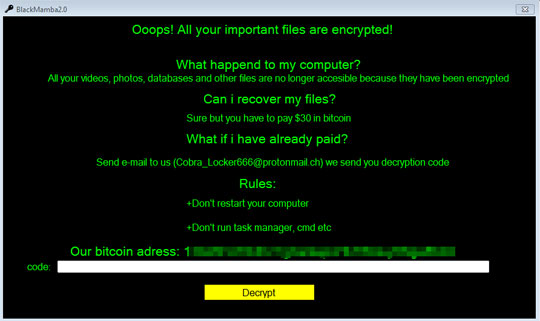
- When a correct code is provided
- It displays the following:
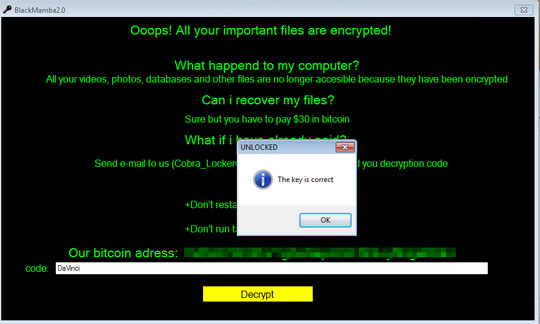
- Decrypt files stored in
- %User Profile%\Desktop
- %User Profile%\Downloads
- %User Profile%\Pictures
- It executes the following command
- "cmd.exe /del C:\Windows\System32\LogonUI.exe && copy %temp%\LogonUI.exe C:\Windows\System32\LogonUI.exe && exit"
- It displays the following:
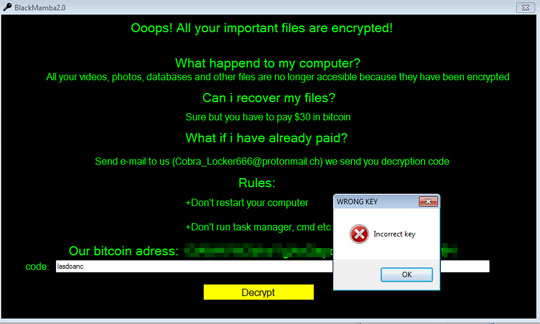
- It displays the following:
- Accepts "DaVinci" as the correct code
Ransomware Routine
This Ransomware encrypts files found in the following folders:
- %User Profile%\Desktop
- %User Profile%\Downloads
- %User Profile%\Pictures
(Note: %User Profile% is the current user's profile folder, which is usually C:\Documents and Settings\{user name} on Windows 2000(32-bit), XP, and Server 2003(32-bit), or C:\Users\{user name} on Windows Vista, 7, 8, 8.1, 2008(64-bit), 2012(64-bit) and 10(64-bit).)
SOLUTION
Step 1
Trend Micro Predictive Machine Learning detects and blocks malware at the first sign of its existence, before it executes on your system. When enabled, your Trend Micro product detects this malware under the following machine learning name:
- Troj.Win32.TRX.XXPE50FFF039
Step 2
Before doing any scans, Windows 7, Windows 8, Windows 8.1, and Windows 10 users must disable System Restore to allow full scanning of their computers.
Step 3
Note that not all files, folders, and registry keys and entries are installed on your computer during this malware's/spyware's/grayware's execution. This may be due to incomplete installation or other operating system conditions. If you do not find the same files/folders/registry information, please proceed to the next step.
Step 4
Identify and terminate files detected as Ransom.MSIL.COBRALOCKER.C
- Windows Task Manager may not display all running processes. In this case, please use a third-party process viewer, preferably Process Explorer, to terminate the malware/grayware/spyware file. You may download the said tool here.
- If the detected file is displayed in either Windows Task Manager or Process Explorer but you cannot delete it, restart your computer in safe mode. To do this, refer to this link for the complete steps.
- If the detected file is not displayed in either Windows Task Manager or Process Explorer, continue doing the next steps.
Step 5
Enable Registry Editor, Task Manager, and Folder options
Step 6
Delete this registry key
Important: Editing the Windows Registry incorrectly can lead to irreversible system malfunction. Please do this step only if you know how or you can ask assistance from your system administrator. Else, check this Microsoft article first before modifying your computer's registry.
- In HKEY_CURRENT_USER\Software\Microsoft\Windows\CurrentVersion\Policies\System
- DisableTaskMgr = 1
- DisableTaskMgr = 1
- In HKEY_CURRENT_USER\Software\Microsoft\Windows\CurrentVersion\Policies\System
- DisableRegistryTools = 1
- DisableRegistryTools = 1
- In HKEY_LOCAL_MACHINE\SOFTWARE\Microsoft\Windows NT\CurrentVersion\Winlogon
- Shell = empty
- Shell = empty
Step 7
Search and delete this file
- C:\Windows\System32LogonUI.exe
- C:\Windows\System32\LogonUI.exe
Step 8
Restore this file from backup only Microsoft-related files will be restored. If this malware/grayware also deleted files related to programs that are not from Microsoft, please reinstall those programs on you computer again.
- %User Profile%\Desktop\desktop.ini
- %User Profile%\Downloads\desktop.ini
- %User Profile%\Pictures\desktop.ini
Step 9
Scan your computer with your Trend Micro product to delete files detected as Ransom.MSIL.COBRALOCKER.C. If the detected files have already been cleaned, deleted, or quarantined by your Trend Micro product, no further step is required. You may opt to simply delete the quarantined files. Please check the following Trend Micro Support pages for more information:
Step 10
Restore encrypted files from backup.
Did this description help? Tell us how we did.